Advanced Settings (Optional)
Note
This page is automatically translated from Japanese to English. Please refer to the original Japanese page for the most accurate information.
How to Add More Gimmicks
Following the OSC Parameter Specification, you can add more gimmicks by sending a float value to /avatar/parameters/VRCPleasure/Gimmick/*.
Here is an example of adding more contact gimmicks.
Duplicate the Prefab 2.Contact Function.
Change the name of VRCPleasure/Gimmick/Contact in the MA Parameters of 2.Contact Function (1) to a desired name, such as VRCPleasure/Gimmick/HeadContact.
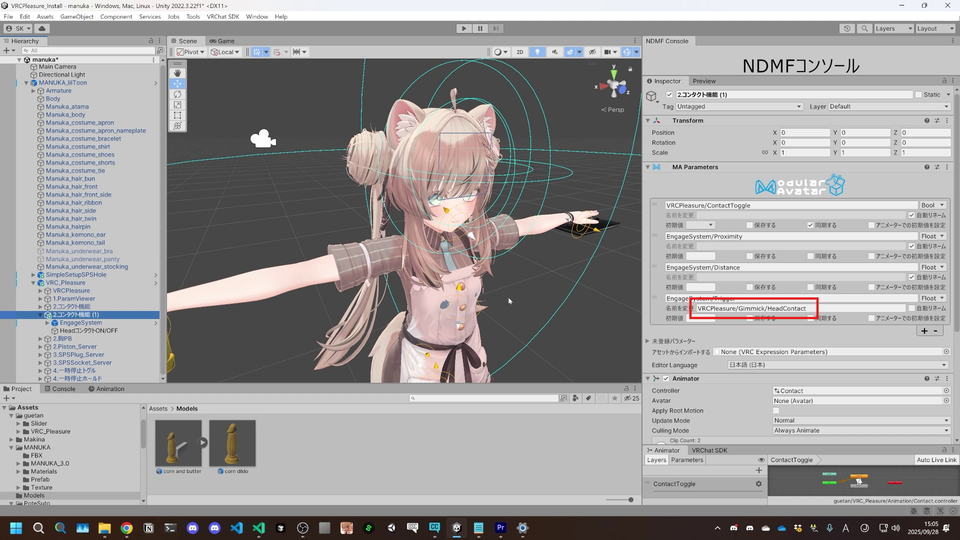
Move the EngageSystem of 2.Contact Function (1) to the desired location, and change the Target of MA Bone Proxy to the bone you want to move it to.
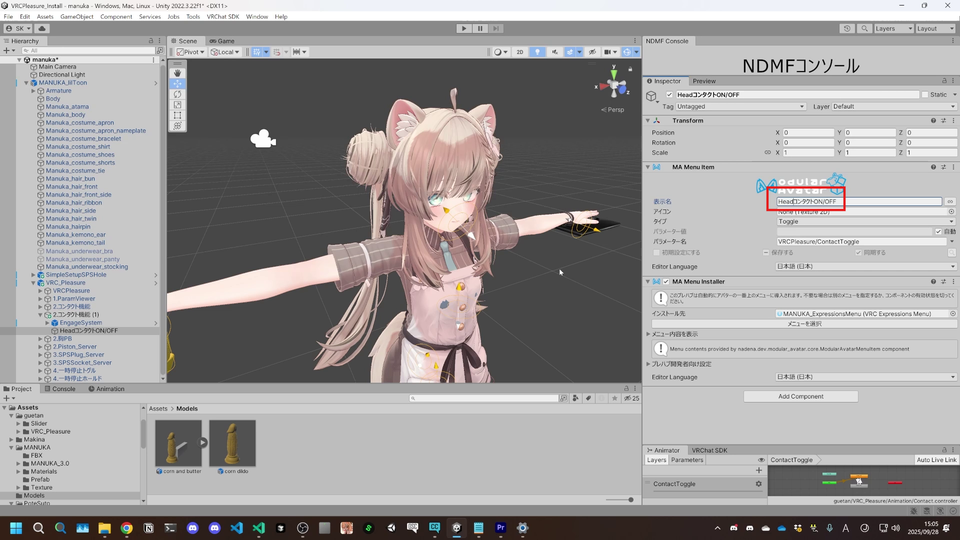
Change the display name of the MA Menu Item in Contact ON/OFF of 2.Contact Function (1) to a desired name.
Note
If you don't do this, it will be indistinguishable from the default contact function.
Click on Select Menu under the installation destination of MA Menu Installer in Contact ON/OFF of 2.Contact Function (1) and select VRC_Pleasure.
This procedure adds Head Contact ON/OFF as a submenu of VRC_Pleasure.
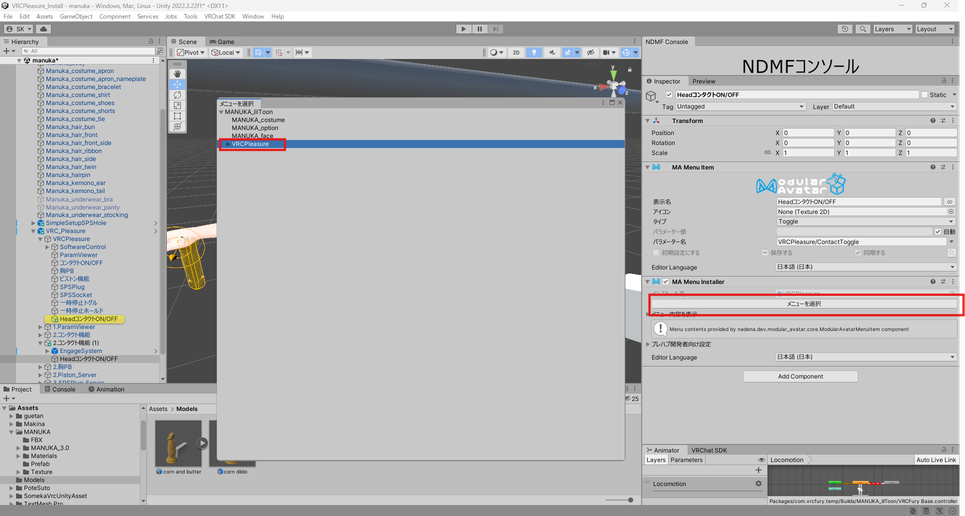
This completes the setup, enabling OSC pattern operation with this gimmick.
Setting the Initial Position of the Slider
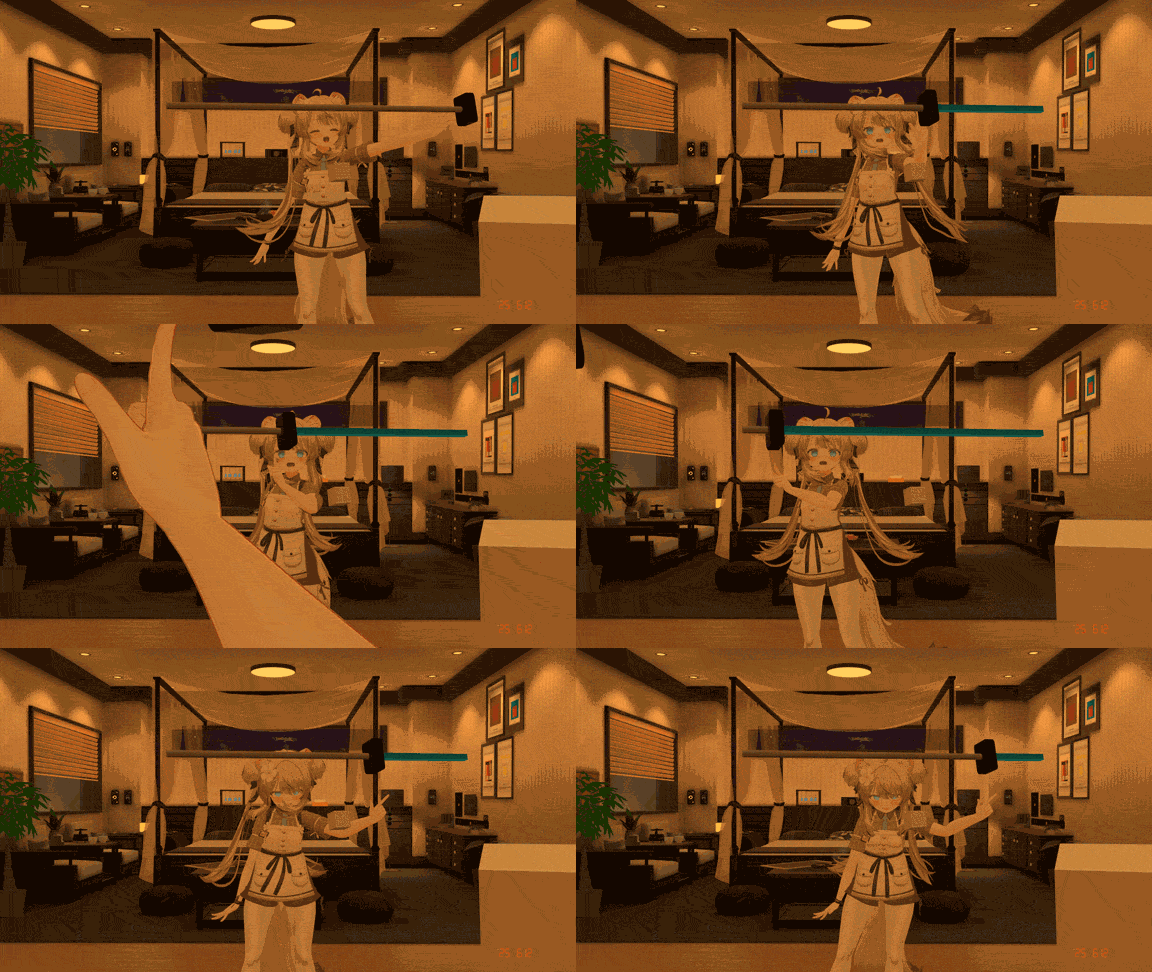
To change the initial position setting of this slider, adjust:
VRCPleasure/SoftwareControl/device~/Manual Operation/Slider Display/WorldFix/WorldTransform/Avatar/Chest/InitPos
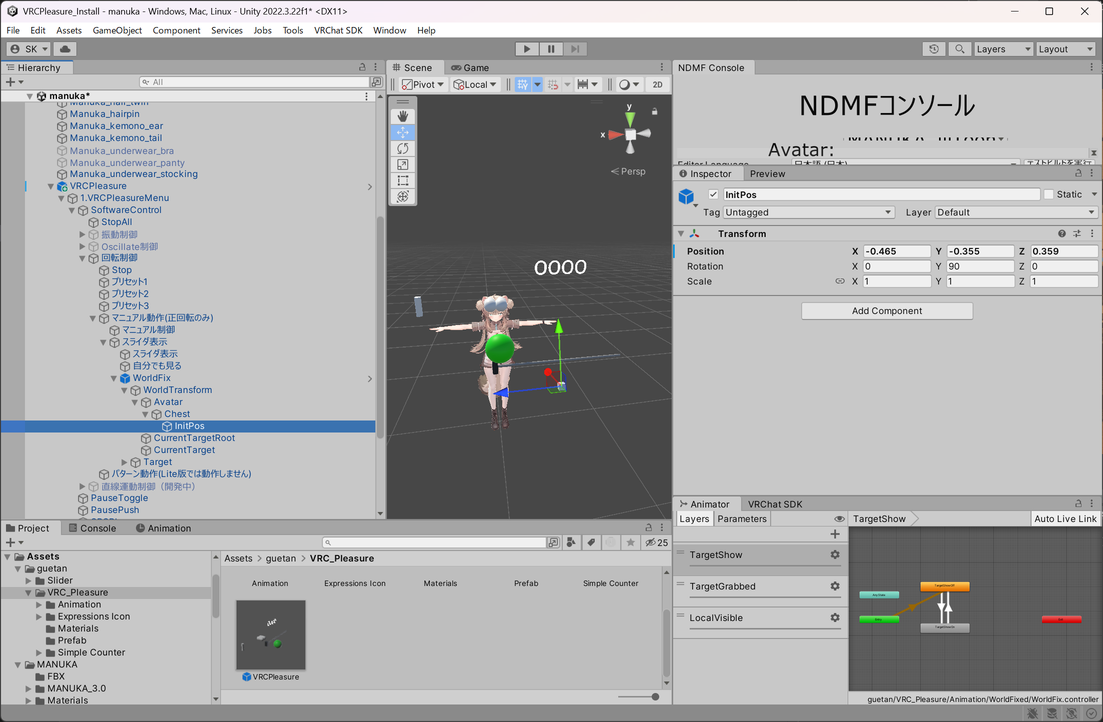
Setting the Initial Position of the Pause Contact
If you want to set the initial position, adjust the position of WorldFix/WorldTransform\Avatar\Chest\InitPos in either 4.Pause Toggle or 4.Pause Hold.
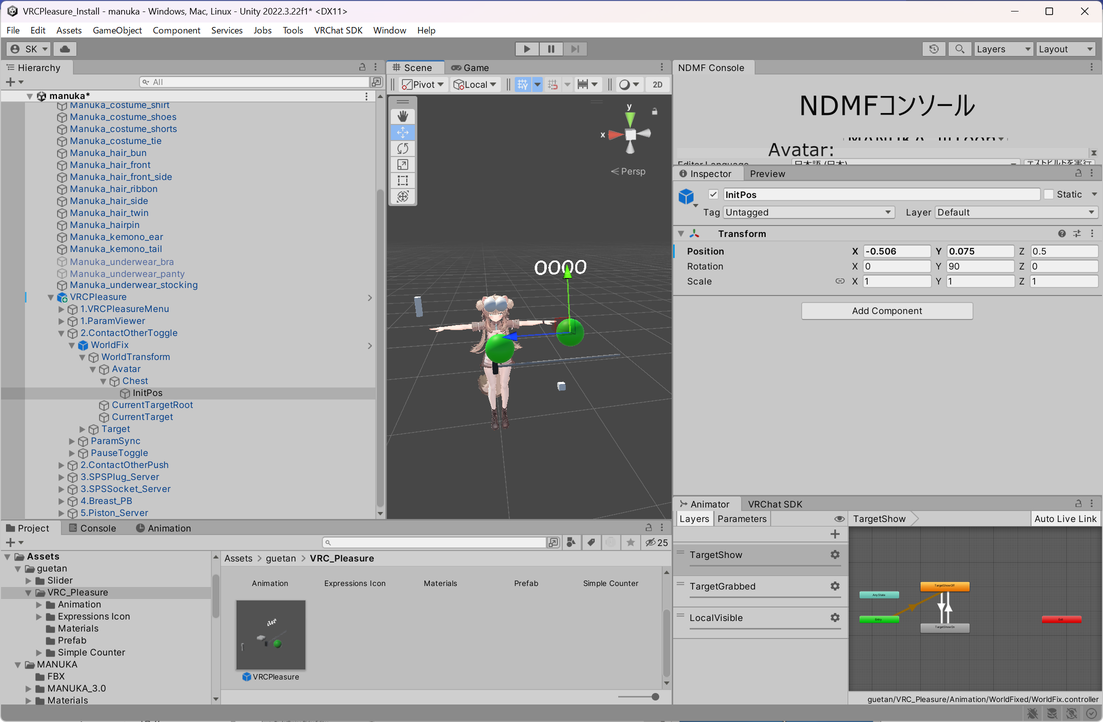
Setting the Initial Position of the Piston Gimmick
Adjust the position of WorldFix/WorldTransform\Avatar\Chest\InitPos in 5.Piston_Server.
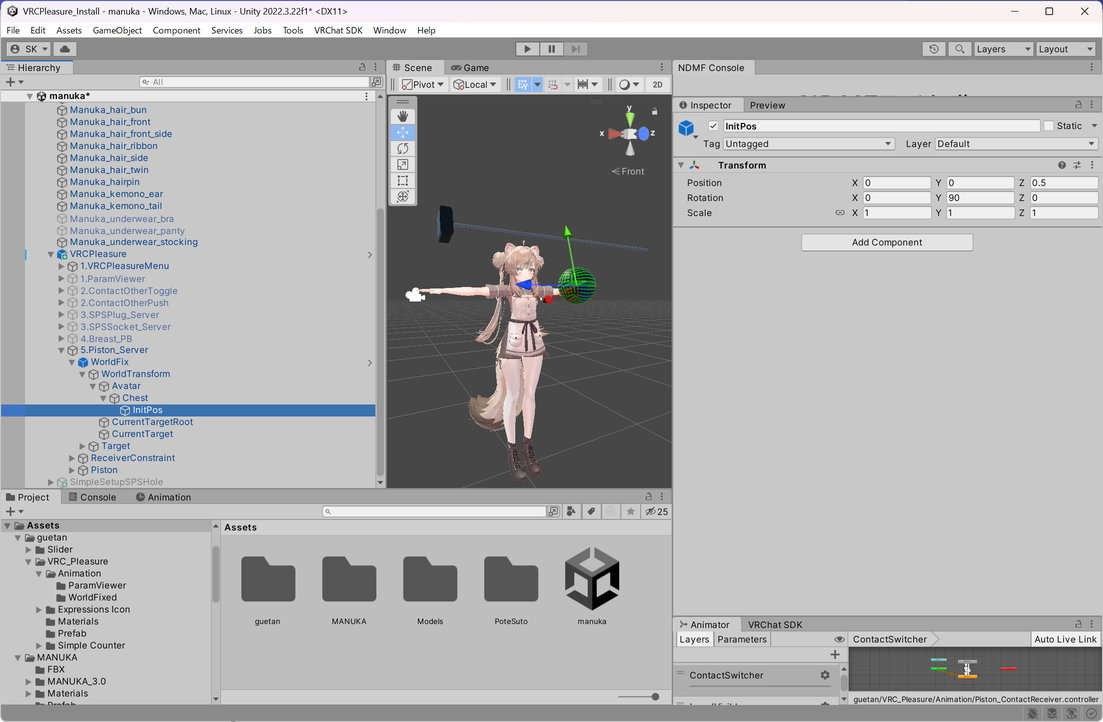
Changing the Model (High Difficulty)
Warning
This section is for advanced users and requires knowledge of the VRChat SDK and Unity. Animation settings are required for complete configuration.
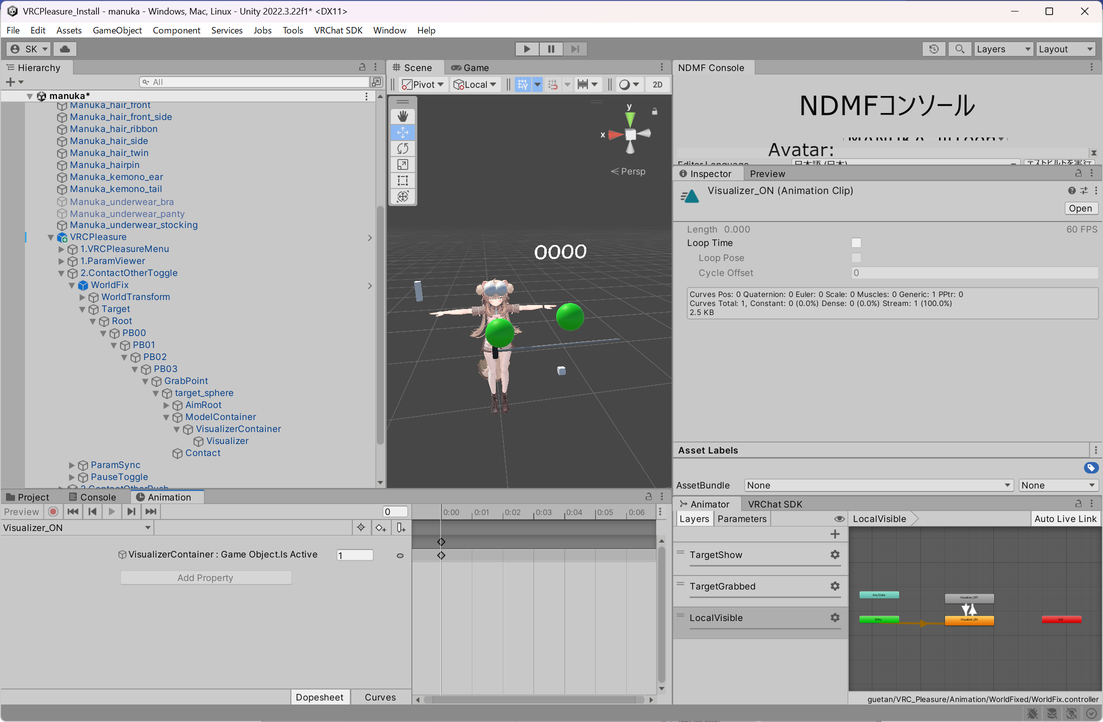
The model for 4.Pause Toggle, 4.Pause Hold, and 5.Piston_Server is located at WorldFix/Target/Root/PB00/PB01/PB02/PB03/GrabPoint/target_sphere/ModelContainer.
Place the model you want to set instead of the Visualizer inside VisualizerContainer and adjust the Contact to match its position.
Note that ModelContainer is the grab object for world-fixed position changes, so it is not recommended to change the position of ModelContainer or the relative position of its model.
Also, in the sample, the model's color changes when touched. This color change is achieved by running QuadPauseVisualizer with MA Merge Motion (Blend Tree) based on the VRCPleasure/Pause parameter.
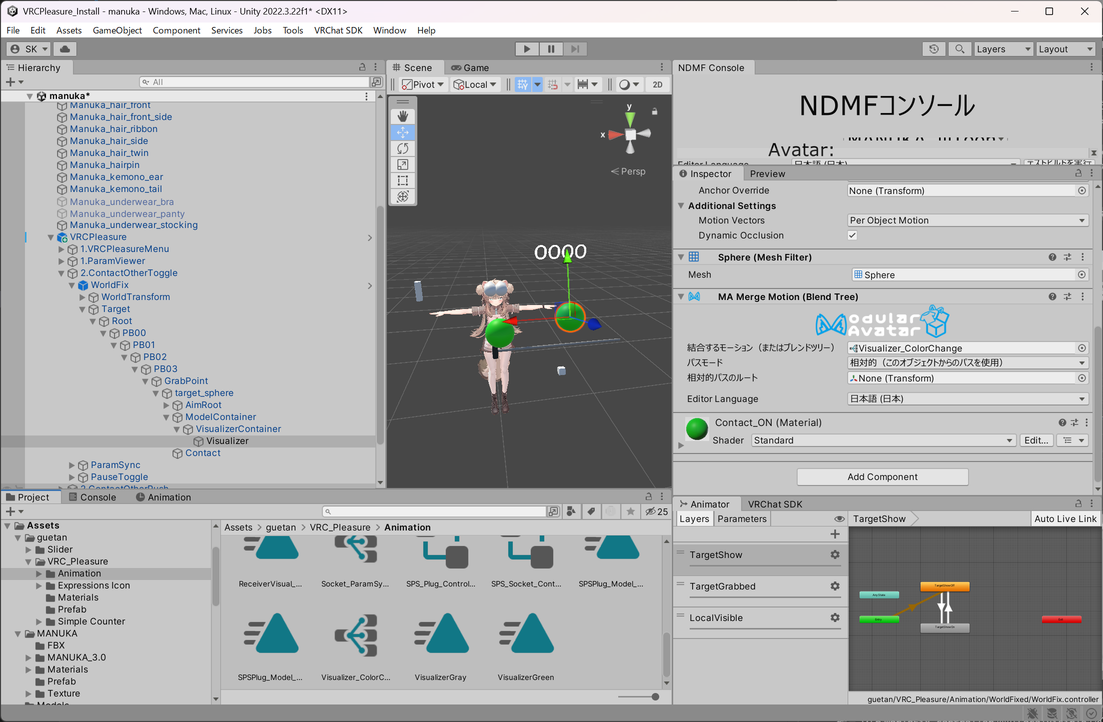
Furthermore, the mechanism that makes it invisible to oneself (by only being visible to others) is implemented in the LocalVisible layer within WorldFix.controller, which is integrated by the MA Merge Animator of 4.Pause Toggle/WorldFix or 4.Pause Hold/WorldFix, disabling VisualizerContainer.